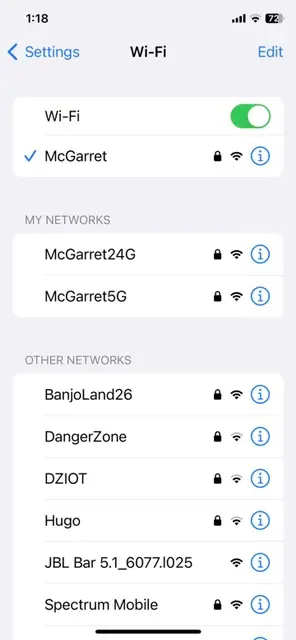
1) The first step is to be sure that the new router is working.
The first step is to make sure the new router is fully operational and correctly configured. This includes verifying that the router has an active internet connection and that all basic network functions are working as expected. To do this, connect an smartphone via Wi-Fi to the router by selecting its SSID (Wi-Fi network name) and entering the correct password. Once connected, confirm internet access by checking email or visiting websites such as YouTube.

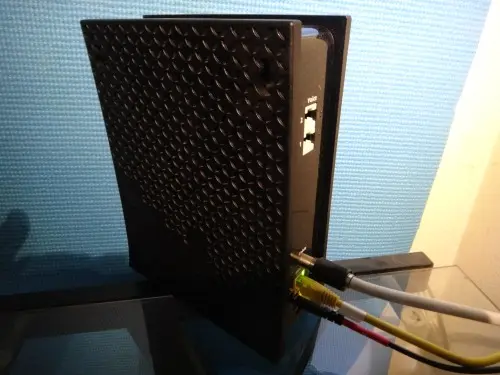
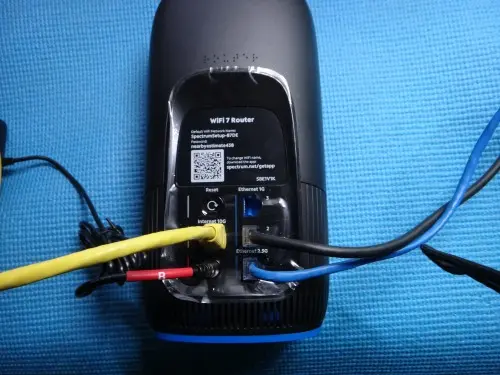
2) Make sure the network cable coming from the NVR/DVR is properly connected to one of the LAN ports (usually 3 or 4) on the back of the router, not to the WAN/Internet (often yellow) or modem port. Very often, when a router is replaced, one or more cables are accidentally left unplugged or not reconnected to the correct port. In the left picture below you can see the modem with yellow connector, on the right side is the router with the yellow connector to the modem and 2 network connectors. The black one is the connector of the NVR/DVR in this case.
3) On your phone, close the app completely (LTS Connect) and then reopen it. After restarting the app, try accessing your system again to see if the connection has been restored. If not keep going with the step 4.
4) The next step has to be performed on the DVR/NVR monitor.
If you are watching your cameras on you monitor press right click on the mouse and the menu will appear, the menu can be a blue line at he top of the screen with Icons at the top (Main Toolbar) or a Quick Menu.
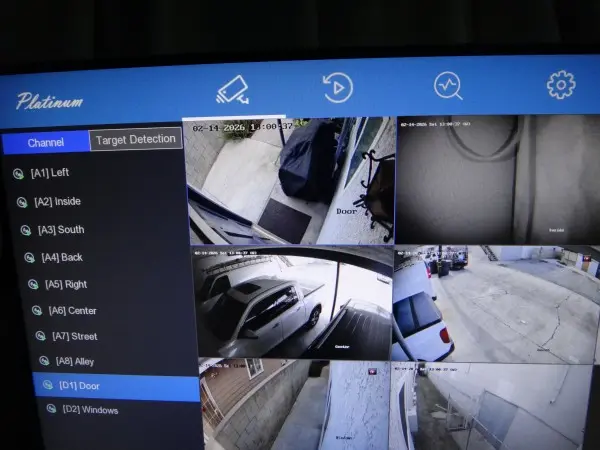
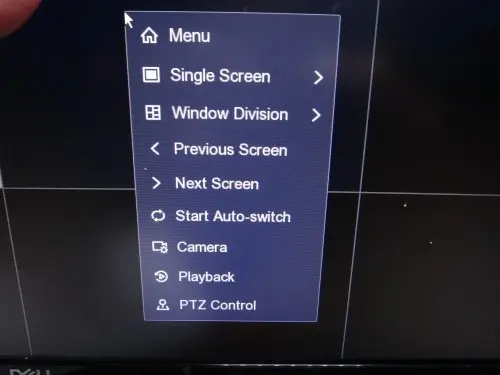
On the blue top menu bar, click the gear icon (Settings).
Alternatively, open the Quick Menu, click Menu, and then select the gear icon (Settings),
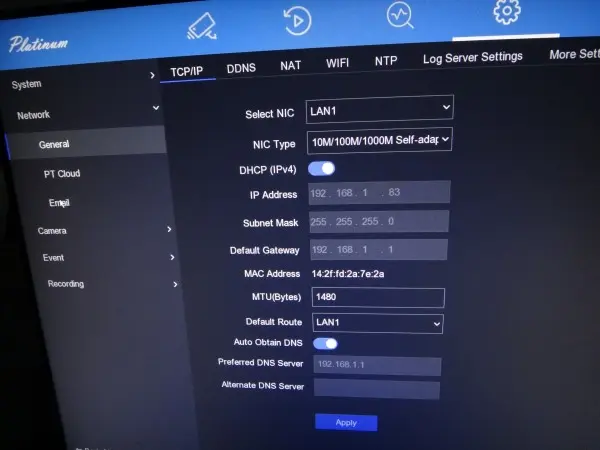
Click on network to see the menu on the picture left side.
DHCP (IPV4) has to be “ON” (blue), if it’s “OFF” click on the icon and turn it “ON” and click on apply. (at the bottom of the Menu)
In the next step click on “PT Cloud on the left menu
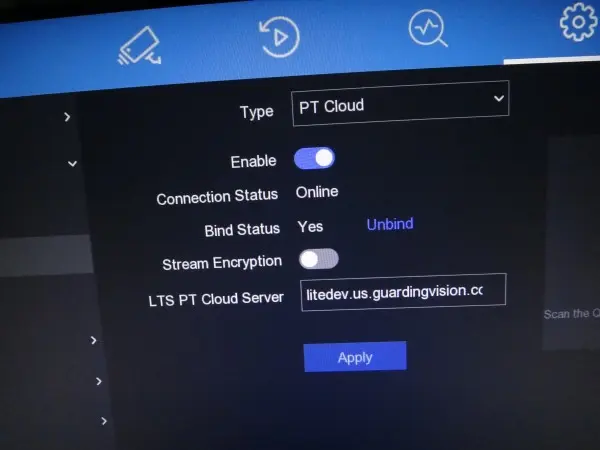
You should see Enable displayed in blue. If it is off, turn it on and click Apply. After applying the changes, the Connection Status should show Online, and the Bind Status must display Yes.
Next, open the LTS Connect app on your phone and check the camera feed. You should now be able to see the cameras.
If the cameras are still not visible or an error appears, reboot the DVR/NVR:
- Go to the top menu on the right side.
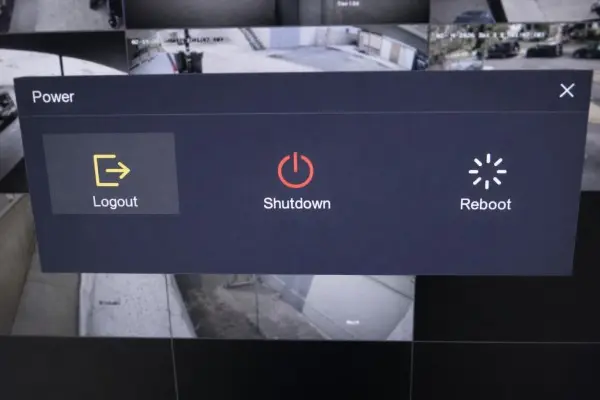
- Click the last icon (Power).
- Select Reboot.
- Wait about 5 minutes for the system to restart.
Once the reboot is complete, open the app again and check the cameras.
If you still cannot see the cameras, please call or text (562) 556-7545 for technical support.